Searching for a MuMu Player download for PC brings up dozens of pages offering the same installer. Only one source is official: NetEase's own download page. This guide explains which build to choose, how to tell a genuine installer from a repackaged one, and what to do right after installing.
The Three Official Builds
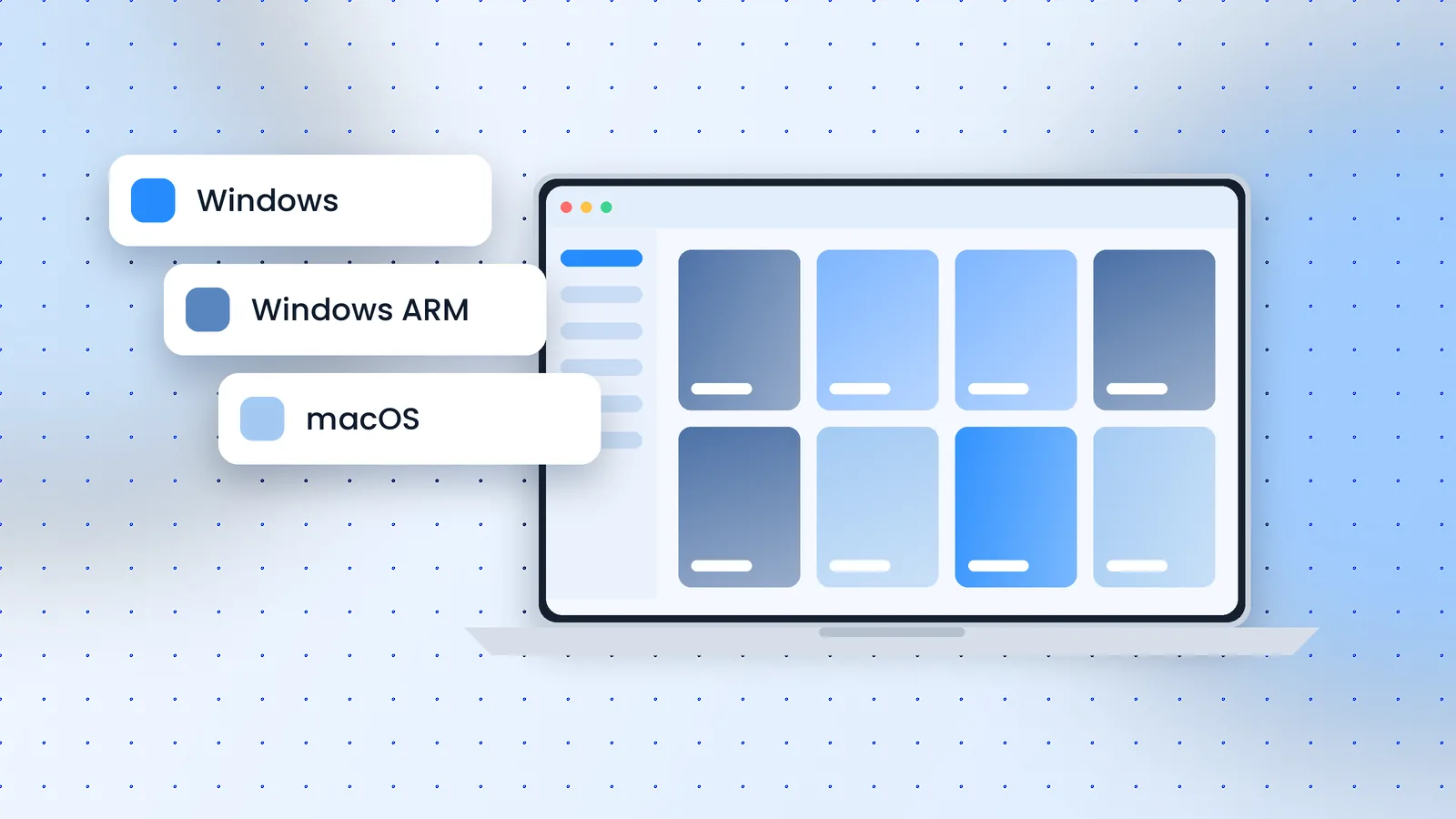
NetEase currently offers three desktop installers on its download page:
- Windows for standard Intel and AMD PCs. It's free, and the newest build listed in the release notes is V6.8.0, dated September 23, 2026.
- Windows ARM for laptops with ARM processors, such as Snapdragon-based machines. NetEase labels it beta.
- macOS, sold as MuMuPlayer Pro, for Apple Silicon Macs. It includes a 7-day trial on Macs that haven't used it, then requires a subscription.
The same page also links to MuMuPlayer mobile apps for Android and iOS. Those apps don't emulate anything; since V6.8.0 they let you remotely control the emulator devices running on your computer.
How to Tell Which One You Need
On Windows, open Settings, System, About and look at "System type". "x64-based processor" means the standard build. "ARM-based processor" means the ARM build. If it says "32-bit operating system", read our 32-bit guide first, because the current Android 64-bit editions won't install.
On a Mac, choose About This Mac. If the chip is listed as Apple M-series, MuMuPlayer Pro is designed for you.
Why Mirror Sites Are a Risk
Download aggregators often rename installers, wrap them in their own "download managers", or keep serving old versions long after NetEase has moved on. Even when a mirror is honest, you have no way of checking that its file matches NetEase's, because NetEase doesn't publish checksums. The safest habit is simple: bookmark the official page and use it every time.
Verify Before You Run It
- Right-click the installer and choose Properties.
- Open the Digital Signatures tab and confirm a valid signature from the publisher is present.
- If Windows SmartScreen blocks a file from an unofficial site, don't override it; download again from the official page.
Before You Install
Check that your PC is close to NetEase's recommended configuration: Intel Core i5-7500 or better, 4+ cores, virtualization (VT) supported and enabled, 4 GB or more of RAM, a GTX 950 or better-class graphics card, and 2 gb free on the install drive plus 1.5 gb free on the system drive. If VT is disabled in your BIOS, enable it first; our VT guide shows how.
Frequently Asked Questions
Is the MuMu Player download free?
Yes on Windows. The Mac edition is paid after a trial.
Can I download an older version?
NetEase distributes the current app, which can run both Android 12 and Android 15 devices. Unofficial archives of old builds can't be verified, so we don't recommend them.
Bottom Line
Pick the build that matches your processor, download it from NetEase, and check the signature. Then follow the installation guide to set up your first device.