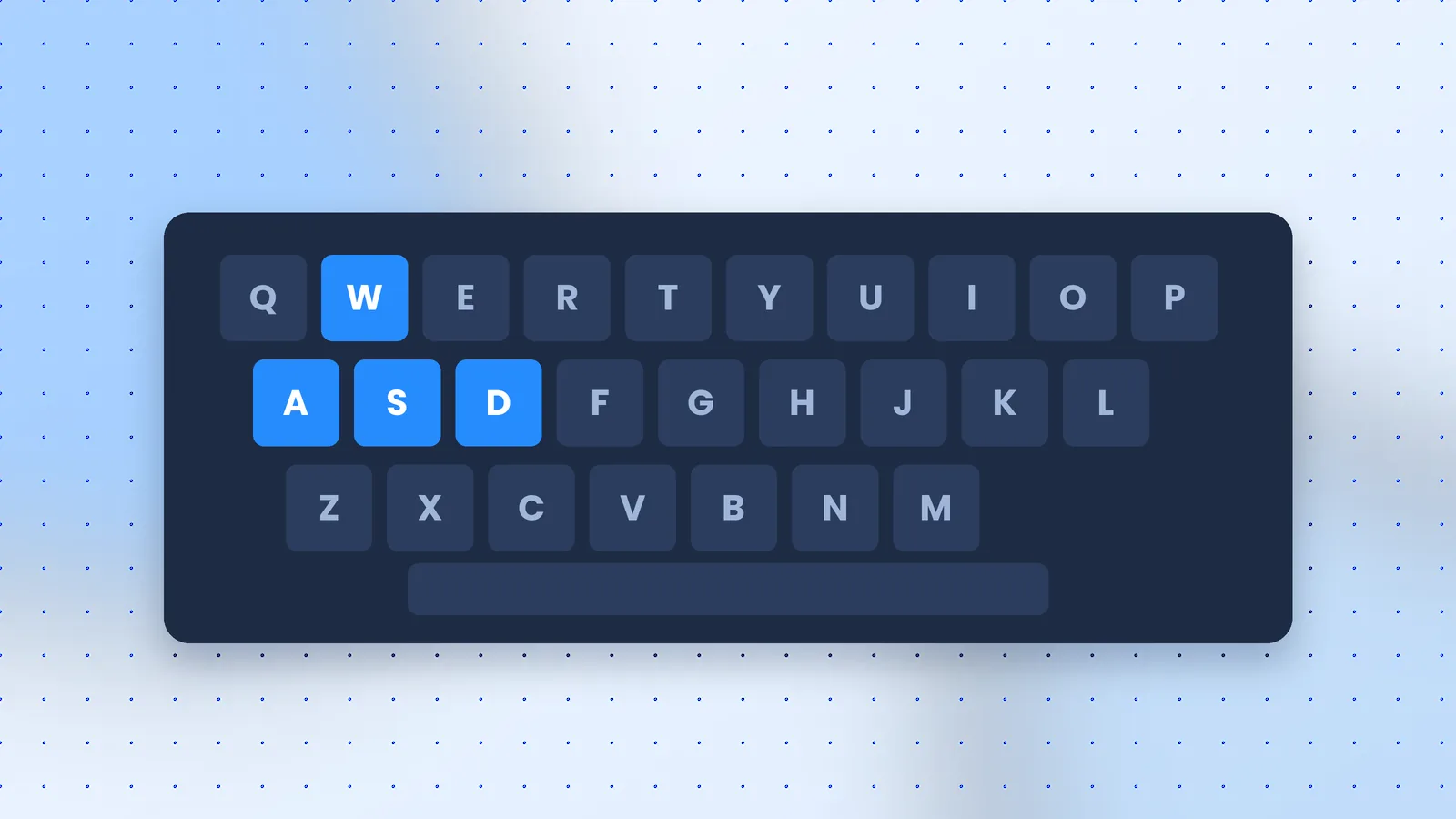
Two settings make the biggest difference to how games feel in MuMu Player: the keyboard and mouse scheme, and the frame-rate limit. Here's how to set both up properly.
Turn On Keyboard and Mouse Controls
Start a game, then press F12 to show or hide the key scheme. To customise or switch schemes, click the keyboard icon in the upper-right of the Android device window. Many popular games come with a preset that you can tweak.
Make Smarter Schemes
- Condition editing: since V6.3.1, smart key mapping supports conditions, so a key can behave differently depending on the situation.
- Share and import: since V5.25.0, you can export key-mapping and macro schemes and import ones others have made.
- Advanced keys: wheel keys, zoom keys and free look were added for shooters and action games.
- Gamepads: mainstream controllers work, with key mapping or a native controller mode.
Unlock High Frame Rates
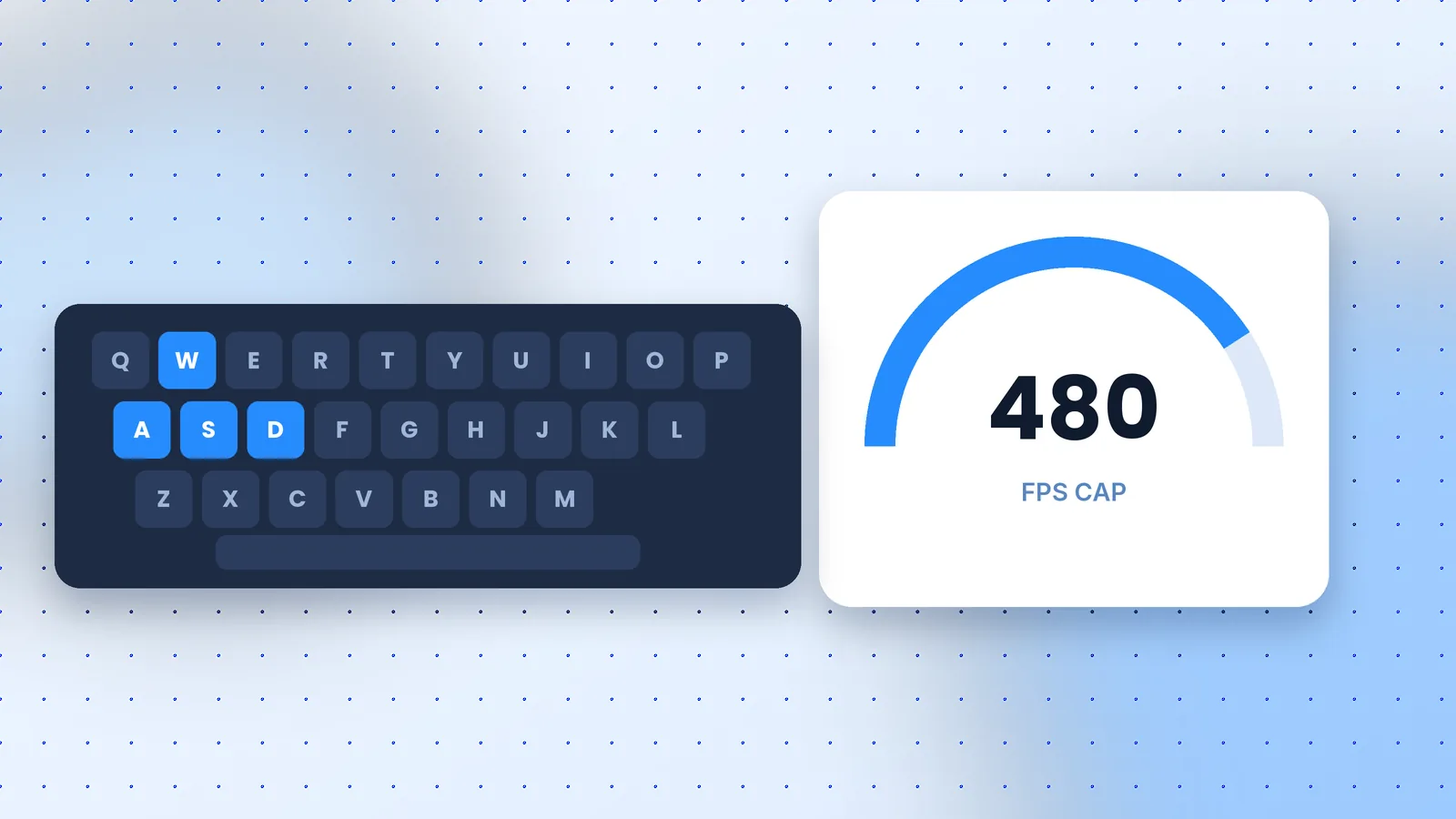
Click the ··· menu, then Device Settings, Display, and raise the frame-rate setting above 60 to enable high-FPS mode. NetEase raised the maximum to 480 FPS in V5.31.3 (June 2026), up from 240 in earlier builds.
Three rules keep it smooth:
- Match your monitor. A 144 Hz screen can't show 240 FPS, so set the limit at or just above your refresh rate.
- Check the game. Many titles cap frame rate themselves; the emulator setting can't exceed it.
- Watch your hardware. Higher limits load the CPU and GPU. If temperatures or fan noise climb, step back down.
Pick the Right GPU
On laptops with integrated and dedicated graphics, use Graphics Card Selection in performance settings (V6.4.7 and later) to make sure the dedicated GPU renders the game.
A Word on Fair Play
Macros and automation can break some games' rules. Check the terms before using them in competitive modes. For more settings, see the user guide.