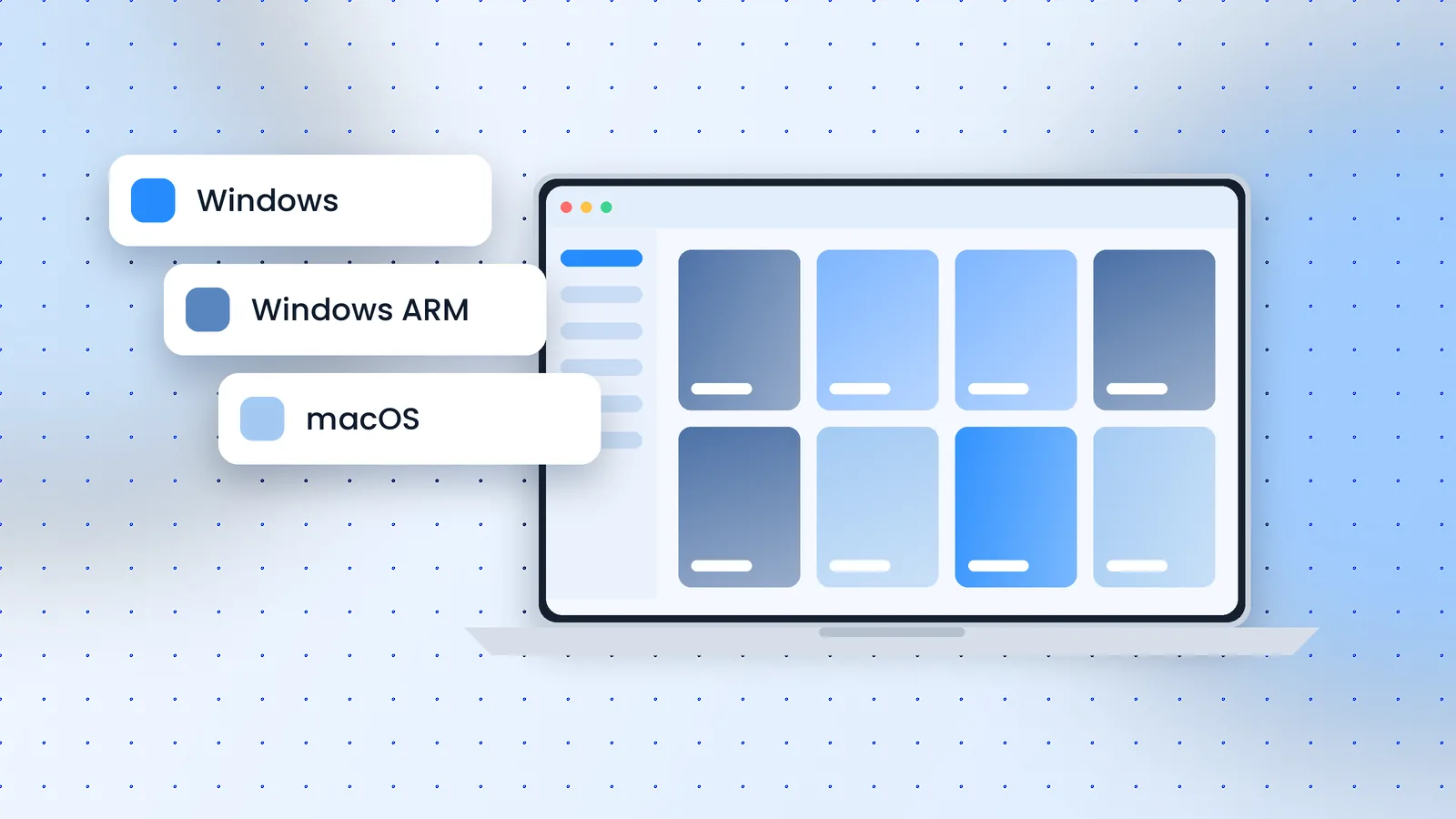
Lots of people search for MuMu Player Lite, hoping for a slimmed-down edition. NetEase's official download page doesn't list one: it offers Windows, Windows ARM and macOS builds of the same app. Third-party "Lite" downloads can't be verified, so skip them. The good news is that the standard app can be tuned to run comfortably on modest PCs.
Know the Baseline
NetEase recommends Intel Core i5-7500 or better, 4+ cores, virtualization (VT) supported and enabled, NVIDIA GTX 950 or better and 4 GB or more of memory. Below that, the emulator can still work, but you'll want to trim its demands.
Seven Settings That Lighten the Load
- Enable VT. It's the single biggest gain; see our VT guide.
- Run one device. Each extra instance needs its own RAM and CPU time.
- Allocate cores sensibly. NetEase advises choosing fewer than half your physical cores per device to avoid lag.
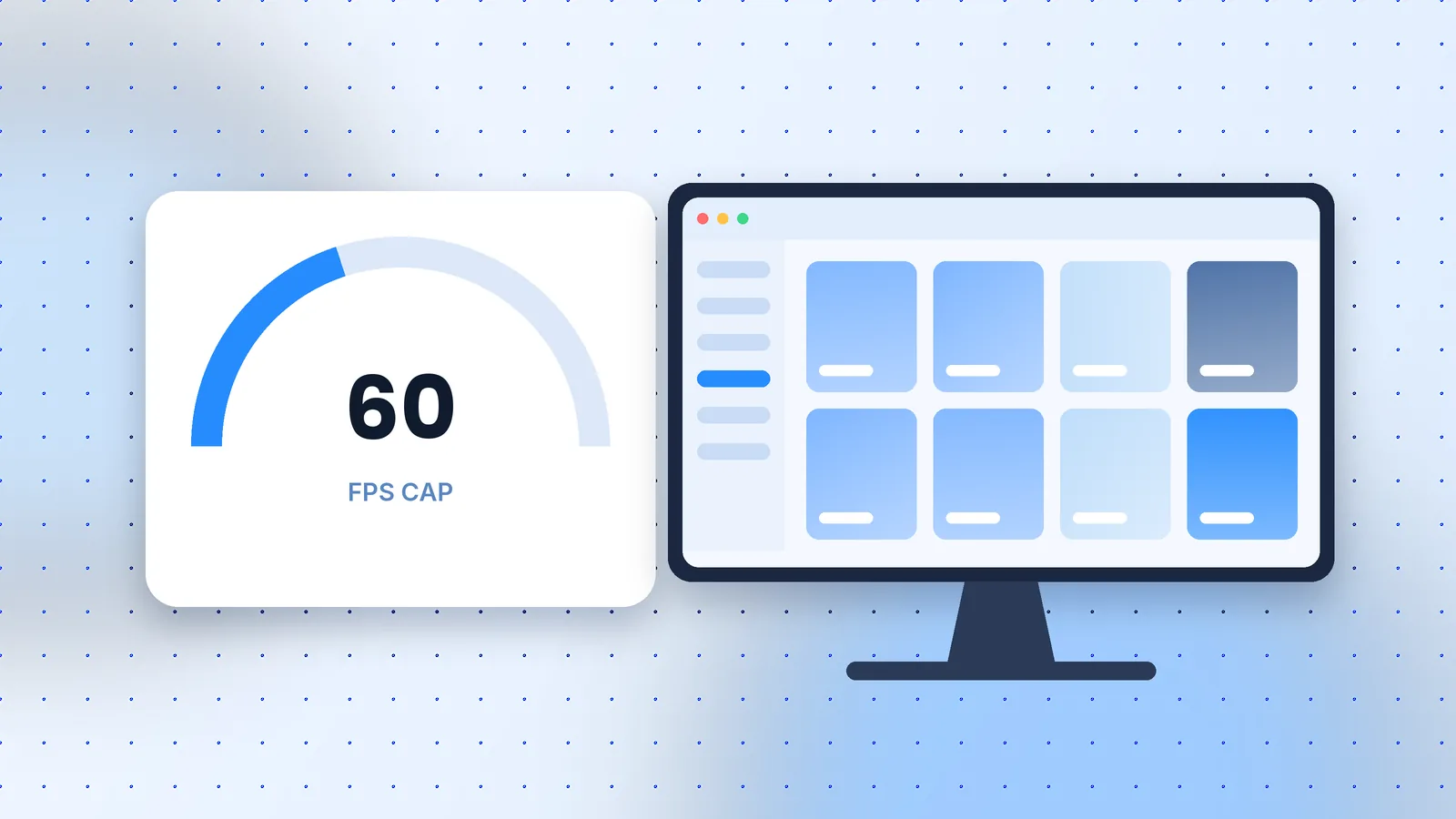
- Cap the frame rate at 60 in Device Settings, Display.
- Lower the resolution to 720p-class settings for lighter rendering.
- Use small disk mode when creating a device to save storage.
- Close background apps such as browsers with many tabs before gaming.
Choose Android 12 or 15 Thoughtfully
Android 15 brings newer features, but if a game runs fine on Android 12, there's no need to switch on a weak machine. Test both and keep whichever is steadier.
What About MuMu Nebula?
NetEase has also offered a separate lightweight emulator called MuMu Nebula aimed at older PCs. It is a different product from MuMu Player, and isn't listed on the main download page we reference. Check whether your games support it before choosing it over the standard app.
When to Consider Alternatives
If your PC has 4 GB of RAM or less and no dedicated GPU, a cloud gaming service or the phone version of the game may simply be smoother. Our alternatives comparison covers other options.